
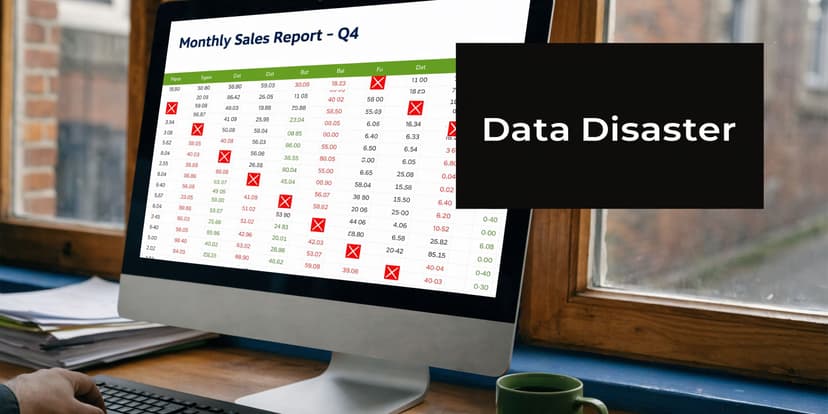
Last quarter, I watched a bank statement turn into junk after a quick PDF-to-Excel export. The debit and credit columns collapsed, a few decimals shifted, and the “fast” shortcut became a cleanup job nobody had time for.
The Hidden Costs of Bad Data Conversion
Bad conversion work rarely fails in an obvious way. It fails, inside columns that look close enough until someone tries to reconcile the account.
Where the time goes
The first problem is not the export itself. It is the rework after it.
A statement that looked simple in PDF form suddenly has wrapped descriptions split into extra rows, opening balances treated like transactions, and negative amounts interpreted as text. An accountant then has to compare the output line by line against the source PDF, which defeats the point of automation.
That is why I treat convert pdf to xml as a data-structure job, not a document-conversion job. PDF was designed to preserve appearance. XML was designed to preserve meaning.
When a converter gives you a flat file too early, you lose context. A date becomes just a cell. A running balance becomes just another number. A transaction memo can detach from the amount it belongs to. XML keeps those relationships intact.
PDF is for viewing and XML is for systems
Accounting systems do not care that the PDF looked perfect on screen. They care whether the underlying data is structured correctly for import, matching, audit trails, and downstream automation.
Many teams underestimate that distinction. The broader market has already moved in that direction. The global data conversion services market is substantial and growing, and one cited case showed automated PDF processing cutting a manual task from 6 hours to 15 minutes, a 24x efficiency gain for finance teams (Digiparser).
Practical takeaway: If your current workflow ends with “clean it up in Excel,” you do not have a conversion process. You have a manual correction process with extra steps.
What XML fixes that spreadsheets often do not
A good XML export gives you structure that accounting software can work with directly.
- Transaction grouping: A transaction stays connected to its date, description, amount, and balance.
- Nested detail: Fees, taxes, subtotals, and reference fields can sit inside the right parent record instead of spilling across columns.
- Import readiness: XML is far easier to map into bookkeeping and ERP workflows than a messy spreadsheet export.
- Audit clarity: When something fails, it is easier to identify which node or field caused the issue.
That is the true hidden cost of bad conversion. It is not just lost time. It is reduced trust in the data, which forces accountants back into manual review even when the team paid for “automation.”
Why XML Is the Gold Standard for Accounting Data
CSV is fine for simple tables. XML is better for accounting records that have hierarchy.
That is the reason experienced finance teams push toward XML when the source document is messy. A bank statement, invoice, or remittance advice is not just a grid of values. It has sections, parent-child relationships, summary lines, and exceptions that need to stay connected.
Flat files break when documents get complicated
A CSV or spreadsheet export can work if every row follows the same pattern and the source PDF is clean. Real accounting documents are rarely that cooperative.
A statement may include:
- Multi-line payee descriptions that wrap over several visual lines
- Fees and adjustments attached to a single transaction
- Daily balances that belong to a sequence, not a standalone row
- Headers and footers repeated on every page
- Foreign-language labels mixed with account numbers and dates
In a flat file, those elements often get jammed into neighboring columns or split into new rows. XML handles them more naturally because it can represent the document as a tree instead of a grid.
XML mirrors the way financial data is organized
Here is the practical difference.
A spreadsheet says: row 18, column D, value 125.00.
An XML file says: this amount belongs to this transaction, on this date, under this account, with this memo, and this balance after posting.
That makes import mapping much more reliable. If you are sending data into QuickBooks, Xero, Sage, or an internal reconciliation workflow, that context matters. It reduces the chance that descriptions drift away from amounts or that balances get treated like standalone entries.
Tip: XML earns its keep when the document contains nested meaning, not just visible text. If the PDF has sections within sections, XML is usually the safer target.
Why accountants care about structure more than format
Most practitioners do not want “an XML file.” They want three outcomes:
| Need | What XML helps preserve | Why it matters |
|---|---|---|
| Clean imports | Parent-child relationships | Fewer mismatched fields |
| Faster review | Tagged, labeled elements | Easier exception checking |
| Better audit support | Consistent structure | Clearer trace from source to system |
XML also beats a casual copy-and-paste workflow. A proper XML output can preserve a transaction as one logical object rather than a row assembled from fragments.
It supports direct system logic
Accounting software works best when imported data is predictable.
A well-formed XML file can support workflows such as:
- Bank feed preparation: Transaction dates, references, and amounts stay grouped for import.
- Reconciliation support: Running balances can remain associated with the transaction sequence.
- Schema validation: Teams can check whether required fields exist before the file reaches production.
- Repeatability: Once a mapping works for one statement layout, it becomes easier to reuse.
That last point matters in practice. Accountants do not need “creative” conversion. They need repeatable conversion.
XML reduces cleanup, not judgment
XML will not replace review. It will reduce the amount of pointless review.
You still need to verify unusual items, split transactions, and anything that hits a validation rule. But that review is different from rebuilding a statement from broken cells. Instead of repairing the file, you are checking exceptions.
That is why XML remains the gold standard for accounting data. It gives systems enough structure to import intelligently and gives humans enough context to verify confidently.
Choosing Your Conversion Method for Native vs Scanned PDFs
The first decision is simple. Is the PDF a document, or is it a picture of a document?
That one distinction decides almost everything that follows.
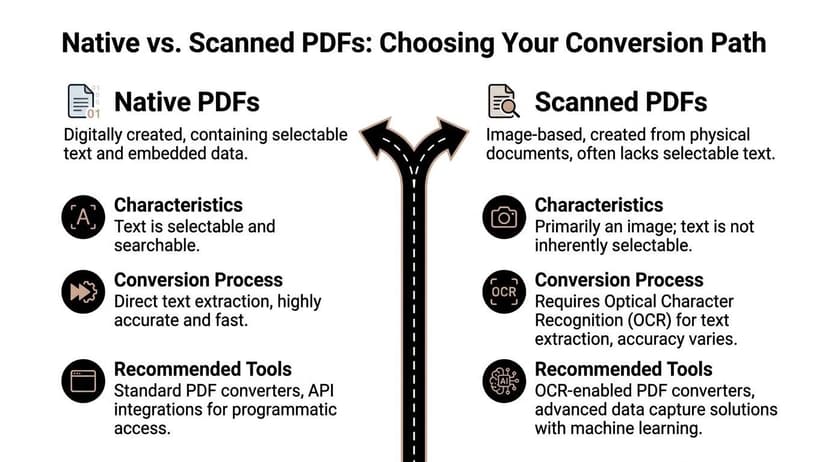
Native PDFs behave like files
A native PDF was created digitally. You can usually click into the text, search it, copy it, and highlight values line by line.
These are the easiest files to convert because the text already exists inside the document. In many cases, Adobe Acrobat Pro can extract that text directly. Native XML export through Acrobat has been around since around 2005, which made it one of the early bridge tools between fixed-layout PDFs and structured output (CoolUtils).
That does not mean native PDFs are always clean. Some still contain awkward tables, odd spacing, or hidden reading order problems. But they usually fail less dramatically than scans.
Scanned PDFs behave like images
Scanned PDFs are where most accounting teams lose time.
A scanned bank statement may look crisp to the eye and still be terrible for conversion. The text is often just pixels. The converter has to guess where letters begin and end, where a row breaks, and whether a faint mark is a decimal point or noise.
Typical failures include:
- Character confusion: 1 and 7, 0 and O, 5 and S
- Broken tables: transactions split across lines or merged together
- Header pollution: page numbers and repeated titles inserted as data
- Low-quality scans: skewed pages, shadows, compression artifacts
- Mixed layouts: one page clean, the next page faint or rotated
The old tool split no longer works well
For years the standard advice was straightforward. Use direct extraction for native PDFs. Use OCR for scanned PDFs.
That logic still holds, but the quality gap between basic OCR and modern AI-based extraction is where real workflow differences show up. Basic OCR reads characters. Better systems infer structure.
If you process invoices as well as statements, a workflow resource like OCR PDF Invoices is useful because it shows how template-driven extraction and validation can fit into an operational pipeline. The accounting lesson is the same. Recognition alone is not enough. You need field mapping and review logic.
A side-by-side view of what works
| PDF type | Best starting method | Common failure mode | Better fallback |
|---|---|---|---|
| Native PDF | Direct text extraction | Reading order and table structure | Structured parser with field mapping |
| Scanned PDF | OCR | Misread text and broken rows | AI-assisted OCR with validation |
| Mixed or poor-quality file | AI-first approach | Inconsistent page behavior | Review queue plus schema checks |
The strongest current tools are not just OCR engines. They combine OCR, layout detection, and validation against expected data patterns.
That matters in accounting because the work is not done when text is extracted. The work is done when the transactions are usable.
What modern AI changes
Modern AI converters supporting numerous banks worldwide can process even low-quality scanned statements quickly and significantly save finance teams many hours per week, according to business context from CoolUtils. That is a meaningful shift because the bottleneck is no longer just text capture. It is reliable interpretation of statement layout and transaction structure.
I also recommend understanding the banking-specific OCR issues covered in this guide on https://convertbanktoexcel.com/blog/ocr-in-banking. It is useful for seeing why statement extraction fails differently from ordinary document OCR.
Rule of thumb: If the file contains selectable text, test direct extraction first. If the file is scanned, rotated, faint, or table-heavy, skip generic converters and move straight to a tool built for financial documents.
What does not work reliably
Three approaches waste the most time:
- Copy-paste from PDF to Excel. It looks quick and fails on anything beyond the simplest layout.
- Generic free converters. They may grab text but often ignore transaction structure.
- One-template-fits-all OCR. Bank statements vary too much by institution, page design, and scan quality.
The better approach is to diagnose the PDF first, then choose the method. Accountants who do that spend their time reviewing exceptions instead of rebuilding outputs.
A Step-by-Step Workflow with ConvertBankToExcel
The best workflow is boring. Upload the file, review what matters, export the right structure, and move on.
That is the standard I use when judging any PDF conversion process. If a tool needs constant template tweaking, manual table boxing, or post-export repair, it is not ready for production accounting work.

Start with batch intake, not one file at a time
Most firms do not process one statement. They process a folder.
A practical workflow starts by uploading the full batch, especially when month-end or year-end requests arrive in clusters. The useful tools accept mixed statement qualities in the same run, including digital PDFs, scans, and longer multi-page documents.
The point is not convenience. It is consistency. A batch workflow lets the team apply one review standard across all files instead of improvising from statement to statement.
For teams comparing options, this overview of a bank statement converter to Excel is worth skimming because it highlights the operational difference between basic exports and accounting-ready extraction.
Let the parser detect the layout first
The next step is layout detection.
A good banking-focused converter should identify statement sections automatically instead of asking you to draw boxes around every field. That includes opening and closing balances, transaction tables, date columns, references, and debit-credit patterns.
If a tool cannot tell a transaction row from a running balance row without manual training, the review burden comes right back to the accounting team.
Useful automation usually includes:
- Automatic layout recognition: Different banks and statement templates are detected without manual setup.
- Multi-page handling: Continuation pages are merged correctly into one transaction stream.
- OCR fallback: Scanned pages are processed when embedded text is unavailable.
- Validation cues: Suspicious rows are flagged for review before export.
Review exceptions instead of reading every row
This approach saves professionals time.
The most effective interface is not one that asks you to inspect everything. It is one that points you to what is uncertain. Confidence scoring, row highlighting, and balance validation are far more useful than a giant output table with no guidance.
I look for a review step that answers four questions fast:
- Did the opening balance parse correctly?
- Do debits and credits appear in the correct direction?
- Did any transaction descriptions split or merge incorrectly?
- Does the closing balance reconcile with the extracted activity?
If those checks hold, the file is usually safe to export.
A banking workflow also benefits from automation around repetitive data entry. This article on https://convertbanktoexcel.com/blog/automated-data-entry-software gives a good sense of how review and validation can replace manual typing in finance operations.
Choose XML when the destination system needs structure
Once the extraction looks clean, select XML as the output when the downstream system expects hierarchy or schema-based import.
That is the right choice when you want to preserve transaction grouping, balances, account identifiers, and memo fields in a structured way. If the destination is QuickBooks or another platform that supports adjacent import formats, many teams also compare XML to QBO or OFX depending on the exact import path.
The point is not to export every file into every format. The point is to choose the output that matches the next step in the accounting process.
Why a guided workflow beats raw OCR output
Raw OCR output gives you text. An accounting workflow needs usable transactions.
That difference matters most with scans and unusual statement layouts. For high-volume CPA work, undetectable tables in scanned PDFs can cause 70-90% manual rework, while AI-OCR combined with structured XML mapping such as <transaction id='N'> can reach 99.7% character accuracy and eliminate that rework (SysInfoTools).
Those numbers line up with what practitioners see in real work. Most pain comes from table interpretation, not from ordinary text recognition.
Tip: Never approve an export just because the text “looks mostly right.” In accounting, one broken table can push dozens of transactions out of sequence.
Watch a full workflow before standardizing it
A short visual walkthrough helps teams spot hidden friction before they commit to a process.
The workflow I trust most
In practice, the most reliable sequence looks like this:
| Stage | What to do | What to check |
|---|---|---|
| Intake | Upload full statement batch | File completeness, readable pages |
| Detection | Let the tool identify layout | Correct table boundaries |
| Validation | Review flagged rows only | Dates, amounts, balance flow |
| Export | Choose XML or accounting-ready format | Mapping matches destination |
| Import | Load into system or staging environment | No schema or field errors |
That workflow works because each step has a clear purpose. Intake handles volume. Detection handles structure. Validation handles risk. Export handles compatibility. Import handles final acceptance.
Where people still get into trouble
Even with a strong workflow, three mistakes keep showing up:
- Skipping the review screen: The converter may be right most of the time, but statement anomalies still happen.
- Exporting the wrong format: XML is powerful, but only when it matches the system’s expected schema.
- Ignoring balances: A file can look tidy and still fail reconciliation.
When those checks are built into the routine, convert pdf to xml stops being a rescue operation. It becomes a repeatable accounting process.
Mastering XML Output for Direct System Imports
A clean extraction is only half the job. The XML file still has to make sense to the system that will import it.
That is where many workflows break. The data is present, but the structure is wrong for the destination.

Think in parent-child relationships
Good XML for accounting should reflect the document logically.
A simplified bank statement structure might look like this:
<bankStatement>as the container<account>for account-level metadata<page>if page-level grouping matters<transaction id='N'>for each movement- Child tags inside each transaction for date, description, amount, and balance
This is why XML works so well for imports. It keeps each transaction self-contained while still belonging to the larger statement.
Map fields based on accounting purpose
Do not map tags based only on what the PDF column is called. Map them based on what the destination system expects.
For example:
| PDF field | XML tag idea | Import concern |
|---|---|---|
| Description | <memo> or equivalent |
Keep merchant text intact |
| Posting date | <date> |
Match expected date format |
| Debit or credit | <amount> with sign logic |
Avoid reversed transaction direction |
| Running balance | <balance> |
Useful for validation and reconciliation |
| Reference number | <reference> |
Helps duplicate checking |
That sounds obvious, but many “successful” exports fail here. The XML is technically valid, yet the accounting system rejects it or imports it badly because the field semantics are off.
Watch for the classic import failures
The common issues are not glamorous:
- Invalid characters inside descriptions or references
- Wrong tag names for the receiving schema
- Missing required fields such as date or amount
- Improper nesting where a child tag sits outside its transaction
- Wrong amount direction on debits and credits
For high-volume CPA firms, scanned PDFs with undetectable tables can create 70-90% manual rework if that structure is not fixed before export. By contrast, AI-OCR with structured XML mapping can reach 99.7% character accuracy and remove that rework burden when the hierarchy is built correctly (structured XML mapping for accounting workflows).
Key takeaway: A valid XML file is not automatically an import-ready XML file. Valid syntax and correct accounting mapping are different things.
Match the schema before you export
If the destination is QuickBooks, Xero, Sage, or Tally, learn what that system wants before choosing your XML structure.
Some systems accept generic XML only with middleware or custom import routines. Others expect a very specific schema. In those environments, the export tool should let you choose or customize tag names and parent-child relationships instead of forcing a generic layout.
The fastest way to avoid rework is to maintain a small import checklist for each target system:
- Required tags
- Accepted date formats
- Amount sign convention
- Optional but helpful reference fields
- Validation rules before import
Use XML as a control point, not just an output file
One advantage of XML is that it gives accountants and technical staff a common language.
A reviewer can confirm whether transaction grouping looks right. A developer or systems admin can validate the schema. The import tool can then process the same structured file with fewer surprises.
That is why I prefer XML in workflows that need direct system imports. It is transparent enough to inspect and structured enough to automate.
Security and Compliance in High-Volume Conversion
Most PDF conversion guides spend pages on extraction and almost nothing on confidentiality. That is backwards for accounting work.
Financial PDFs contain account numbers, transaction histories, client names, and often enough detail to create a serious privacy problem if the files are mishandled. Convenience does not outweigh that risk.
Free tools create professional exposure
The danger with random online converters is not just bad output. It is uncertain handling of sensitive documents.
If a firm uploads client bank statements to a free tool without clear security controls, the firm is taking on risk it cannot properly assess. Accountants do not need a flashy interface. They need to know how files are transmitted, stored, and deleted.
According to the cited 2025 business context, 70% of CPAs cite data privacy as a top barrier, and tools with 256-bit SSL and zero-retention policies are critical because unsecured uploads can expose client confidentiality and create GDPR or CCPA problems (VeryPDF).
What to require before uploading any financial PDF
A professional standard should include the following controls:
- Encrypted transit: The upload session should be protected with strong SSL encryption.
- Zero retention: The provider should not keep client files longer than necessary.
- Automatic deletion: The service should remove uploaded files promptly after processing.
- Clear access controls: Internal team access should be limited and documented.
- Compliance awareness: The workflow should align with client confidentiality duties and privacy law obligations.
Security also affects scale
A secure workflow is easier to scale because staff do not need side-channel workarounds.
When teams trust the conversion environment, they can batch process statements, route outputs for review, and support remote work without emailing raw PDFs around or saving copies in personal folders. That is not just cleaner. It is easier to defend during internal review, client questioning, or compliance checks.
Practical rule: If a vendor cannot state how files are encrypted, retained, and deleted, do not upload bank statements there.
The right standard for accounting teams
The accounting threshold should be higher than “probably safe.”
When you convert pdf to xml for client work, security is part of the workflow design. It belongs in the tool selection checklist right next to OCR quality, schema support, and import reliability.
A converter that saves a few minutes but creates uncertainty around retention or privacy is not efficient. It is a liability dressed up as convenience.
Final Checklist for 99 Percent Conversion Accuracy
Before any team standardizes a convert pdf to xml process, I want these checks in place:
- Identify the PDF type first: Native files and scanned files need different handling.
- Use a banking-aware extractor: Generic converters miss statement logic too often.
- Review exceptions, not just outputs: Focus on flagged rows, split descriptions, and odd amount signs.
- Validate balances: Opening balance, transaction flow, and closing balance should align.
- Map XML to the destination system: Do not assume one XML structure fits every import path.
- Check schema and characters: A clean-looking file can still fail import.
- Treat security as mandatory: Financial PDFs should only go through tools with clear encryption and deletion practices.
- Keep a reusable import checklist: One for each accounting system you support.
A reliable workflow does not depend on luck or heroics before a deadline. It depends on choosing the right extraction method, validating the structure, and exporting XML your accounting system can use.
If you handle bank statements regularly and want a faster way to turn messy PDFs into import-ready files, ConvertBankToExcel is built for that exact accounting workflow. It supports scanned and digital statements, exports structured formats including XML, and is designed for finance teams that care about reviewability, reconciliation, and secure processing.