
![Bank Statement to CSV Free: 5 Methods That Work [2026]](/_next/image?url=https%3A%2F%2Fconvertbanktoexcel.com%2Fapi%2Fuploads%2Fimages%2Faccountant-converting-bank-statement-pdf-to-free-csv-file-for-accounting-software-import-1776280417246.jpg&w=1920&q=75)
Bank Statement to CSV Free: 5 Methods That Work [2026]
Converting a bank statement to CSV format doesn't have to cost anything. CSV is the preferred format for importing transaction data into accounting software like QuickBooks, Xero, and Wave — and there are several genuinely free ways to get your bank PDF into that format.
The tricky part: not all free methods produce the same quality of output. Some return a usable CSV in 30 seconds. Others produce a table with merged columns, broken dates, or missing transactions that you'll spend an hour cleaning up manually.
We tested five methods to convert bank statements to CSV for free. Here's what works, what doesn't, and when you'd choose each.
Why CSV Is Often Better Than Excel for Bank Data
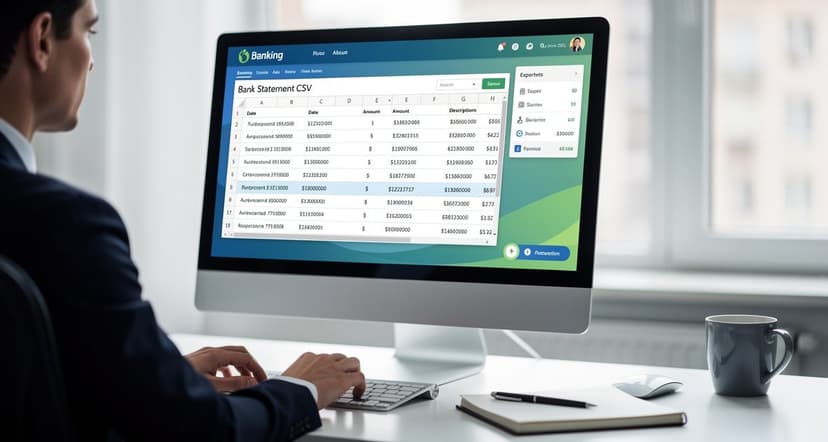
Before getting into methods, it's worth explaining why CSV specifically. When people search for ways to convert a bank statement, they often assume Excel is the end goal. For analysis and reporting, it is. But for getting data into software, CSV wins:
- Universal compatibility: Every accounting platform accepts CSV imports. Excel format (.xlsx) is often not accepted.
- Simpler structure: CSV has no formatting, formulas, or merged cells to cause import errors.
- QuickBooks, Xero, Wave: All use CSV as their standard bank feed import format.
- Smaller file size: Large statements are faster to upload as CSV.
If your goal is to get bank transactions into accounting software, start with CSV. If you want to analyze or chart the data yourself, Excel is the better final destination.
For situations where Excel is the right choice, see our guide on converting bank statements to Excel.
Method 1: ConvertBankToExcel.com Free Tier
ConvertBankToExcel.com is a dedicated bank statement converter with a free plan that includes CSV export. Unlike generic PDF converters, it uses AI-powered OCR specifically trained on bank statement formats.
How to use it:
- Go to convertbanktoexcel.com
- Upload your bank statement PDF
- Select CSV as the output format
- Download the converted file
What you get:
- Properly formatted CSV with standard column headers (Date, Description, Debit, Credit, Balance)
- 99.8% accuracy on both text-based and scanned PDFs
- Works on 1,000+ bank formats including Chase, Wells Fargo, Bank of America, Citi, Capital One, and regional banks
- No credit card required to start
Limitations:
- Free tier has a monthly page limit; high-volume users need a paid plan
Best for: Anyone who wants clean CSV output without manual cleanup. The free tier handles occasional conversions well.
Method 2: Your Bank's Built-In CSV Export
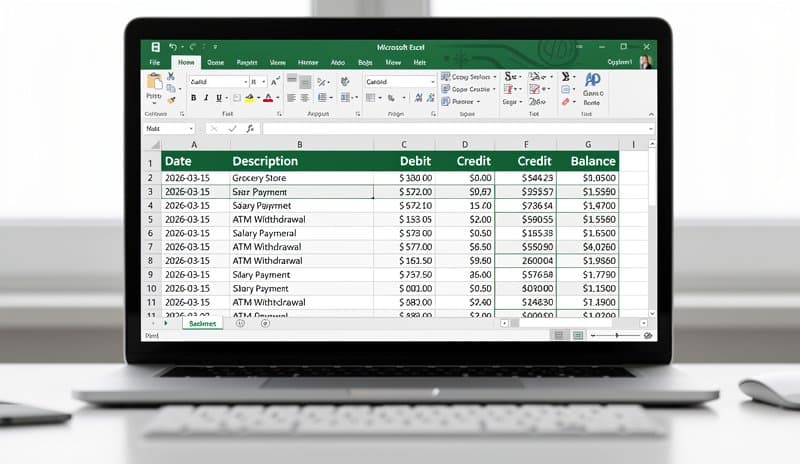
Before reaching for a converter, check whether your bank already offers CSV export directly. Many major banks do.
Banks that offer direct CSV export:
- Chase: Log in, go to Account Activity, filter by date range, select "Download" and choose CSV
- Wells Fargo: Account Activity > Download Account Activity > CSV format
- Bank of America: Accounts > Download Transactions > choose date range and CSV format
- Citi: Account Activity > Download > Comma Delimited (CSV)
- Capital One: Transactions > Download > CSV
If your bank offers this, it's the simplest path: no conversion needed, and the data comes directly from the source with guaranteed accuracy.
Limitations:
- Not all banks offer CSV export (many smaller and regional banks only offer PDF statements)
- The native CSV often lacks a running balance column
- Date formats vary by bank and may need adjustment for accounting software import
- Doesn't work for older statements you only have as PDF files
Best for: Users whose bank supports direct export and who have current statements to download.
Method 3: Tabula (Free, Open Source, Offline)
Tabula is a free, open-source tool that extracts table data from PDFs. It runs locally on your computer and exports to CSV. Since it runs offline, your financial data never leaves your machine.
How to use Tabula:
- Download Tabula from tabula.technology (free, requires Java)
- Open Tabula and upload your bank statement PDF
- Drag to select the transaction table area
- Click "Preview & Export Extracted Data"
- Download as CSV
What you get:
- Unlimited free conversions with no account required
- Data stays on your computer
- Works well for text-based PDFs with clear table structure
Limitations:
- Requires Java installed on your computer
- Does not work on scanned PDFs
- Manual table selection required — not automated
- The output often needs column cleanup (Tabula doesn't know which column is "debit" vs "credit")
Best for: Tech-comfortable users with text-based PDFs who want unlimited, fully offline conversion.
Method 4: Google Sheets (Free, Browser-Based)
Google Sheets can import PDFs via Google Drive and then export as CSV. This works best for simple bank statements with clear table formatting.
How to use Google Sheets:
- Upload the bank statement PDF to Google Drive
- Right-click the file and choose "Open with Google Docs"
- Google Docs will attempt to OCR the document
- Copy the transaction table into Google Sheets
- Clean up columns as needed
- Export as CSV: File > Download > Comma Separated Values
What you get:
- Free with any Google account
- Works in the browser — no software to install
- Can handle some scanned PDFs via Google's OCR
Limitations:
- Results vary significantly depending on PDF layout
- Requires substantial manual cleanup for most bank statement formats
- Not reliable for complex multi-column layouts
- Time-consuming compared to dedicated converters
Best for: Occasional use when you're already working in Google Workspace and have a simple statement.
Method 5: Python + pdfplumber (Free, Developer Option)
For developers or technically confident users, Python with the pdfplumber library can extract table data from PDFs programmatically. This gives you full control over output format.
Basic example:
import pdfplumber
import csv

with pdfplumber.open("bank_statement.pdf") as pdf:
    with open("output.csv", "w", newline="") as csvfile:
        writer = csv.writer(csvfile)
        for page in pdf.pages:
            table = page.extract_table()
            if table:
                writer.writerows(table)
What you get:
- Completely free, unlimited conversions
- Automatable — can process many statements at once
- Full control over output format
- Works well on text-based, structured PDFs
Limitations:
- Requires Python and pdfplumber installed
- Does not work on scanned PDFs without additional OCR libraries
- Needs customization per bank format
- Not practical for non-developers
Best for: Developers building workflows or accountants with programming experience who need to batch-process many statements.
How to Choose the Right Method
Here's a quick decision guide:
| Your Situation | Best Method |
|---|---|
| Want clean output in 2 minutes | ConvertBankToExcel.com free tier |
| Bank has CSV export option | Direct bank export |
| Need unlimited, offline, no account | Tabula |
| Already in Google Workspace | Google Sheets |
| Developer building automation | Python + pdfplumber |
| Statement is scanned/photographed | ConvertBankToExcel.com (only option) |
Getting Your CSV into Accounting Software
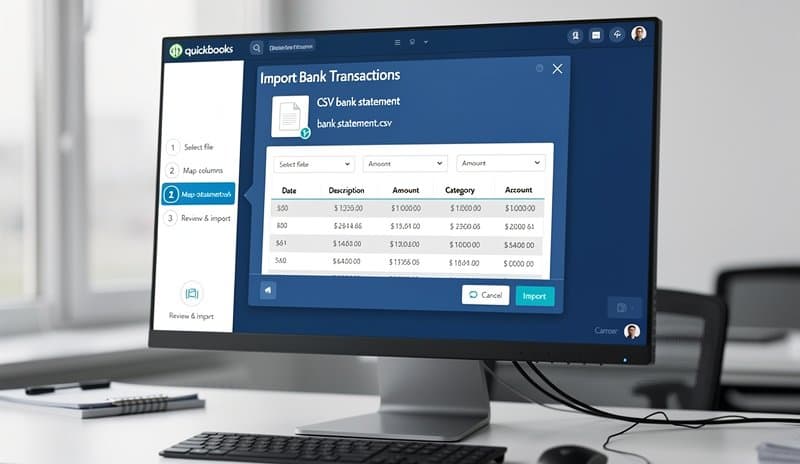
Once you have your CSV file, the import process varies by platform:
QuickBooks Online:
- Go to Banking > Upload from file
- Select your CSV
- Map columns: Date, Description, Amount (or Debit/Credit)
- Review and accept the transactions
Xero:
- Go to Accounting > Bank Accounts
- Select the account, click Import a Statement
- Upload your CSV
- Xero will auto-match to your chart of accounts
Wave:
- Accounting > Transactions > Import Transactions
- Upload CSV
- Map the date, description, and amount columns
For detailed steps on each accounting platform, see our guide on converting bank statement PDFs to accounting software formats.
What Good CSV Output Looks Like
Before importing, check your CSV against these quality markers:
Good CSV output:
Date,Description,Debit,Credit,Balance
2026-01-03,STARBUCKS #1234,4.75,,1245.25
2026-01-05,DIRECT DEPOSIT EMPLOYER,,2500.00,3745.25
2026-01-07,AMAZON MARKETPLACE,89.99,,3655.26
Problematic CSV output (needs cleanup before importing):
Date Description Amount Balance
01/03/2026 STARBUCKS #1234-4.75 1245.25
01/05/2026 DIRECT DEPOSIT EMPLOYER2500.00 3745.25
Common problems with free tool output:
- Date and description merged into one column
- Debit and credit in a single signed amount column (negative = debit)
- Balance column included but accounting software doesn't need it
- Dates formatted as MM/DD/YYYY when software expects YYYY-MM-DD
If you're getting import errors, the column structure is usually the culprit. Using a dedicated bank statement converter like ConvertBankToExcel.com solves this because it outputs columns in the exact format accounting software expects.
Frequently Asked Questions
Can I convert any bank statement to CSV for free?
Yes, in most cases. If your bank offers direct CSV export, use that — it's free and instant. For PDF statements, ConvertBankToExcel.com's free tier handles both digital and scanned PDFs with no credit card required.
What if my bank statement is a scanned image, not a digital PDF?
Scanned PDFs (image-based files where you can't highlight text) require OCR software. Tabula, Google Sheets, and Python scripts do not work on scanned documents. ConvertBankToExcel.com uses dedicated OCR technology that handles scanned statements with 99.8% accuracy.
Will the CSV import correctly into QuickBooks or Xero?
It depends on the tool. Generic converters often export raw tables that need column remapping. ConvertBankToExcel.com outputs CSVs pre-formatted for accounting software import. For our full QuickBooks import walkthrough, read the bank statement processing guide.
How many months can I convert at once for free?
Using direct bank export, you can typically download 12–24 months at once for free. With ConvertBankToExcel.com's free tier, the page limit means one or two typical monthly statements per session. For batch processing of multiple statements, you'd need a paid plan.
Is a CSV the same as an OFX or QBO file?
No — CSV, OFX, and QBO are different formats that accounting software handles differently. CSV is the most universal but requires column mapping on import. QBO (QuickBooks Online) format imports with automatic account matching. For a full comparison, see our OFX vs QBO format guide.
Bottom Line
The fastest, most reliable free method depends on your situation. If your bank offers CSV export, that's always your first stop — it takes two minutes and requires nothing extra.
For PDF statements, ConvertBankToExcel.com's free tier is the practical choice for most people: it handles both digital and scanned PDFs, outputs clean CSVs that import directly into accounting software, and requires no credit card to start.
For developers or high-volume needs, Tabula and Python give you unlimited free conversions at the cost of setup time and manual cleanup.
Whatever method you use, check the output against the quality markers above before importing — it will save you debugging time later.
For more on the full conversion process, including different output formats, see our bank statement CSV to Excel guide.