
![Bank Reconciliation Format in Excel: A CPA's Guide [2026]](/_next/image?url=https%3A%2F%2Fconvertbanktoexcel.com%2Fapi%2Fuploads%2Fimages%2F1775806226028-d8ec8c65.jpg&w=1920&q=75)
Late closes rarely fail because the accountant forgot what a bank reconciliation is. They fail because the data is messy, the bank statement is awkward, and the spreadsheet was built for a clean world that does not exist.
Individuals often encounter the same difficulties. The book balance is close. The bank balance is close. The difference is small enough to be maddening and large enough to block sign-off. You scan rows one by one, then sort by amount, then sort by date, then wonder whether the issue is a duplicate, a timing difference, or a bad import from a PDF statement.
A workable bank reconciliation format in excel has to do more than compare two totals. It has to separate raw data from adjusted data, make exceptions visible fast, and stay reliable when descriptions are inconsistent, dates drift by a day or two, and one statement arrives as a clean CSV while the next arrives as a crooked scan.
That is the standard worth building to.
Beyond the Basics of Bank Reconciliation
The basic version of reconciliation is simple on paper. Compare the bank statement to the ledger, identify outstanding checks, list deposits in transit, record bank fees and interest, and get the difference to zero. If you need a quick refresher on those fundamental aspects of bank reconciliation, that framework still matters.
The problem is that a basic checklist does not survive contact with live accounting data.
One month you download a clean CSV. The next month the client sends a scanned PDF with broken line spacing. Some deposits hit the books on Friday and the bank on Monday. A payment processor groups customer receipts into one net deposit. A staff member posts the same expense twice. None of that is unusual. It is normal.
A useful template has to assume three things from the start:
- Descriptions will be inconsistent. Bank text and ledger memos rarely match cleanly.
- Dates will not line up perfectly. Clearing delays create legitimate mismatches.
- Imports will vary in quality. The structure of the source file often causes more pain than the reconciliation itself.
That is why I never build a reconciliation workbook as a single tab with a few totals at the top. It becomes impossible to audit and too easy to break.
Instead, the file should act like a control system. Raw bank data stays untouched. Book data stays untouched. Matching logic sits in its own columns. Summary cells pull from statuses, not hand-typed adjustments. If someone asks what changed, the workbook should answer without a verbal explanation.
The quality of the source statement matters more than many teams admit. If you are training junior staff, it helps to clarify what information is present on a statement before it even lands in Excel. This primer on https://convertbanktoexcel.com/blog/what-does-a-bank-statement-show is useful for that reason. It anchors the reconciliation in the transaction fields that exist, not the fields people wish existed.
A reconciliation template should not just find differences. It should explain them.
That is the line between a spreadsheet that passes for one month and a spreadsheet you can trust every close.
Structuring Your Reconciliation Template in Excel
A strong layout solves half the problem before formulas do any work. Excel became standard for bank reconciliation in the mid-1990s, and by 1993 it held a significant market share among Windows spreadsheets. A 2010s AICPA survey also noted 75% of U.S. firms used Excel templates, saving an average of 12 hours weekly (Vena Solutions). That history matters because the best templates still rely on the same principle. Keep the structure disciplined.

Use a three part workbook
Do not put everything on one sheet.
Build these tabs:
- Bank Data
- Book Data
- Reconciliation Summary
If you want a mental model, think of it the way operations teams think about an order form format in Excel. The entry layer, calculation layer, and reporting layer should stay separate. Reconciliation works the same way.
Bank Data sheet
This tab holds imported bank transactions only. No manual edits unless you are adding a clearly labeled correction note in a separate column.
Use these columns:
| Column | Purpose |
|---|---|
| Date | Posted or transaction date from the statement |
| Description | Bank narrative exactly as imported |
| Reference | Check number, trace ID, or statement reference |
| Debit | Money out |
| Credit | Money in |
| Amount | Standardized signed amount |
| Running Balance | Optional, but useful for tracing statement sequence |
| Match Key | Formula-driven helper field |
| Status | Matched, Review, Duplicate, Timing, Fee, Other |
The Amount column is the control column. Pick one sign convention and keep it for the whole file. I prefer deposits as positive and withdrawals as negative.
If the bank gives you TXT exports or other odd formats, convert them before they reach the workbook. This guide to https://convertbanktoexcel.com/blog/how-to-convert-txt-to-csv helps standardize imports before the reconciliation starts.
Book Data sheet
This tab should mirror the bank sheet closely enough that formulas can compare the two without constant exceptions.
Use columns like:
- Date
- Description
- Reference
- Debit
- Credit
- Amount
- GL Account
- Source
- Match Key
- Status
A mirrored structure matters. The more your bank and book tabs resemble each other, the easier it becomes to test formulas, use filters, and hand the file to someone else without a long explanation.
Reconciliation Summary sheet
This is the only sheet leadership should need to review.
Include a compact panel with:
- Statement ending balance
- Add deposits in transit
- Less outstanding checks
- Adjusted bank balance
- Book balance
- Add or less book-side adjustments
- Adjusted book balance
- Difference
The difference cell should be impossible to miss. If it is not zero, the workbook is not done.
Design rules that keep the file stable
Some shortcuts save time once and cost time every month after that. Avoid them.
- Do not overwrite imports. Keep raw data intact.
- Do not bury logic in hidden cells. If a result matters, make the formula visible.
- Do not mix manual numbers with formula totals in the same range. Someone will sort the sheet and break it.
- Do use Excel Tables. Structured references are harder to break than loose ranges.
The cleanest bank reconciliation format in excel is not the prettiest one. It is the one another accountant can audit in five minutes.
The Reconciliation Engine Core Formulas and Logic
A reconciliation file earns its keep in the ugly cases. Clean CSV exports with perfect references will reconcile with almost any lookup. A true test is a month where half the bank activity came from a scanned PDF conversion, descriptions were truncated, one deposit was split across two book entries, and someone imported the same statement twice.
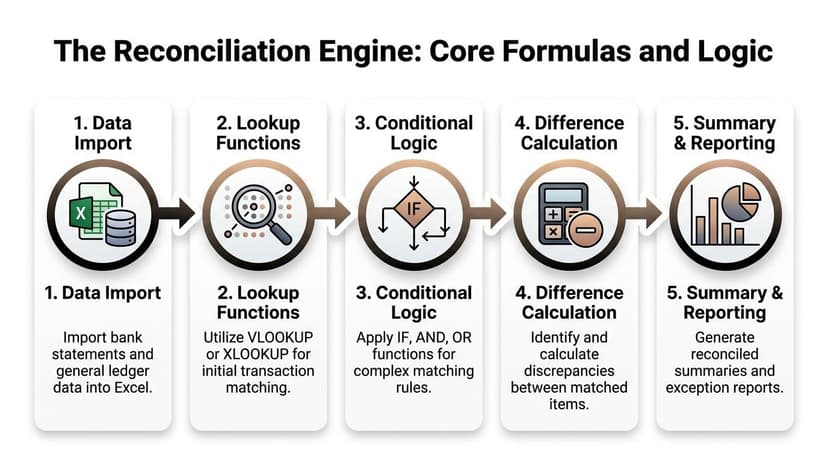
One formula will not handle that well. Build the engine in layers. I use separate logic for exact matches, controlled fallback matches, duplicate flags, and summary totals. That keeps the workbook readable and stops one clever formula from hiding three different errors.
Start with a normalized match key
Helper columns do the hard work.
The first key should be strict, boring, and consistent. I usually combine date, absolute amount, and reference if one exists:
=TEXT([@Date],"yyyymmdd")&"|"&TEXT(ABS([@Amount]),"0.00")&"|"&[@Reference]
That formula is intentionally conservative. It catches the straightforward items fast and leaves the questionable ones for review.
If your bank feed comes from PDF extraction, add one more helper layer before matching. Clean spaces, standardize case, strip line breaks, and remove obvious noise words from descriptions. A bank line pulled from a scanned statement often looks close enough to a human eye but fails a direct key match because of one extra space or a broken reference. If you convert statement PDFs before loading them, this guide on turning PDF bank statements into structured XML is useful when you need cleaner fields upstream.
Use exact match logic first
Start with the narrowest test. Exact matching clears volume quickly and gives you a reliable base before you spend time on exceptions.
=XLOOKUP([@MatchKey],BookData[MatchKey],BookData[Amount],"Unmatched")
I prefer XLOOKUP because it is easier to read and safer when columns move. VLOOKUP can still do the job, but long templates break when someone inserts a column in the middle and forgets the lookup index changed.
Return a status, ID, or source row number instead of the amount if that helps your review. The point of the first pass is not elegance. The point is proving whether the same transaction exists on both sides under a strict rule.
Add a second pass for missing references and messy descriptions
Exact keys will miss valid transactions. That is normal.
Older bank exports often drop reference numbers. PDF conversions can split text badly. Book entries may be posted with the right amount on the right day but a different memo. For those cases, use a controlled second-pass formula that checks date and amount together:
=IFERROR(INDEX(BookData[Reference],MATCH(1,(BookData[Date]=[@Date])*(BookData[Amount]=[@Amount]),0)),"Unmatched")
This fallback logic is useful, but it needs limits. Do not let a loose formula auto-clear everything with the same amount. Common values such as bank fees, card settlements, and payroll batches can repeat. A date-plus-amount match is a candidate match, not always a final match.
Where descriptions are inconsistent, add a cleaned text field and compare shortened versions rather than raw memo text. I have had better results matching on amount plus a standardized description fragment than trying to force fuzzy judgment into one all-purpose formula.
Flag duplicates before you trust any match result
Duplicate detection belongs near the top of the engine, not at the end.
A perfect match key can still produce a bad reconciliation if the same bank file was imported twice or if one journal line was posted twice in the books. COUNTIF or COUNTIFS is enough for an early warning:
=COUNTIF([MatchKey],[@MatchKey])
or
=COUNTIFS([Date],[@Date],[Amount],[@Amount])
Anything above 1 deserves attention. Sometimes it is a true duplicate. Sometimes it is a valid repeated amount. Either way, the sheet should tell you before a lookup pairs the wrong lines.
Use status logic that reflects real exceptions
A good template does not classify everything as matched or unmatched. Real reconciliations need a few more buckets.
Useful statuses include:
- Exact Match
- Possible Match
- Duplicate Key
- Bank Only
- Book Only
- Outstanding Check
- Deposit in Transit
- Bank Fee
- Interest
- Needs Review
These statuses help in two places. They guide the reviewer on row-level exceptions, and they feed the summary sheet without manual recoding. If a transaction changes from Needs Review to Outstanding Check, the totals should update on their own.
SUMIFS should run the summary, not manual typing
Once every row has a status, the summary becomes simple and dependable.
=SUMIFS(BookData[Amount],BookData[Status],"Outstanding Check")
That same pattern works for deposits in transit, bank fees, interest income, and unreconciled book-side adjustments. If someone is retyping those totals into the summary, the workbook is one sort or one filter away from a bad month-end file.
I also recommend a net-difference check tied directly to the status totals. If the workbook says the adjusted balances agree but unresolved items still sit in Needs Review, the logic is incomplete.
Conditional formatting should expose risk fast
Formatting is part of the control, not decoration.
Keep it simple:
- Green for Exact Match
- Yellow for Possible Match or Needs Review
- Red for Book Only, Bank Only, or Duplicate Key
Three colors are enough. Anything more usually turns into noise. The goal is to scan a few hundred rows and know where to spend the next twenty minutes.
Use PivotTables to investigate patterns, not to replace the engine
PivotTables are useful once formulas have done the first sorting. I use them to group repeated amounts, scan activity by posting date, and isolate unusual batches that suggest a duplicate import or a split posting.
They are especially helpful when the source data was messy to begin with. If a scanned statement created several near-identical descriptions, a pivot can show whether the issue is isolated or repeated across the whole month. That kind of review is faster in a pivot than in raw rows.
The best reconciliation templates do not try to automate judgment out of the process. They automate the repetitive checks, surface the risky transactions, and leave a short list of exceptions that an accountant can review with confidence.
The Matching Workflow From Import to Reconciled
Month-end usually breaks in the same place. The bank file lands as a CSV for one account, a scanned PDF for another, and someone has already started “cleaning” descriptions by hand before the workbook has had a fair first pass. That is how a two-hour reconciliation turns into an afternoon of chasing false exceptions.
Step one starts before Excel
The workflow begins with the import, not the match.
If the bank provides CSV, use that file first. If the source is PDF, convert it into structured data before anything reaches the reconciliation sheet. For teams that need the same statement data to flow into other systems after the rec is done, this guide on converting PDF bank statements to XML is a practical starting point.
I do not trust raw PDF extracts until I check three things: dates stayed on the correct rows, signs were preserved, and multi-line descriptions did not split one transaction into two records. If any of those fail, the workbook will produce noise that looks like accounting differences but is really import damage.
Run the first pass without touching the data
Load the bank table. Load the book table. Refresh the formulas and status columns. Then stop and review the exceptions before editing a single description.
That pause matters.
Early manual cleanup hides the original problem. If a duplicate import, broken OCR line, or date drift is present, hand edits make it harder to see the pattern. A good template should show you the easy clears first, then leave the awkward items in a separate bucket for review.
Work exceptions in a fixed order
I use the same sequence every time because the order prevents wasted effort:
- Clear exact matches. Amount, date, and reference align closely enough to mark them done.
- Review duplicates next. One duplicated bank line can create several fake book-side exceptions.
- Tag timing differences. Deposits in transit and uncleared payments belong in recon items, not journal entries.
- Post real book adjustments. Fees, interest, direct debits, and returns need ledger action.
- Review one-to-many and many-to-one items. One bank deposit may represent several customer receipts, or one book payment batch may clear as separate bank lines.
- Escalate fuzzy matches. If the support is weak, keep the item open and leave a note.
Teams that skip straight to fuzzy matching usually waste the most time. Exact and duplicate logic should reduce the file first. Human judgment should handle the last ten percent, not the first fifty.
Investigate by exception type
Unmatched lines are easier to clear when they are grouped by cause instead of reviewed in date order.
Timing items
These are normal operational differences. They should be identified and carried, not corrected.
Typical examples include:
- Deposits entered before month-end that hit the bank after cutoff
- Checks or payments issued but not yet cleared
- Card settlements posted in the ledger on one date and in the bank on another
A resilient template gives these their own status and keeps them out of the adjustment journal logic.
Book-side omissions
These need accounting entries because the bank has activity the ledger does not.
Common examples:
- Bank charges
- Interest income
- Returned customer payments
- Direct debits or standing orders not yet booked
If the source data is clean, these are usually quick wins. If the source data is messy, confirm the transaction is real before posting anything. OCR errors can turn one line into two small fake entries that look plausible enough to fool a rushed reviewer.
Here is a useful visual walkthrough of the broader reconciliation process before you refine it for your own file:
Data-quality mismatches
This category causes most of the avoidable delay.
You will see it when the same amount appears on nearby dates, one bank deposit combines several ledger receipts, descriptions are broken across lines, or a partial payment arrives with almost no recognizable reference. Basic VLOOKUP tutorials do not solve that. You need helper columns, tolerance rules, and a review process that accepts imperfect source data without letting the workbook collapse.
My usual approach is amount first, then date proximity, then reference fragments. If two or three items still look possible, I leave them as Possible Match and move on. Forcing a match too early is one of the fastest ways to create next month’s opening problem.
A practical review rhythm
This is the cadence I expect staff to follow on a live file:
- Confirm the statement range and opening balance.
- Run the match engine and clear exact items.
- Check duplicate flags before reviewing anything manual.
- Separate timing items from true errors.
- Post only the adjustments supported by the bank evidence.
- Leave notes on fuzzy matches so another reviewer can follow the trail.
A sound workflow does not eliminate judgment. It reserves judgment for the small number of transactions that need it. That is the difference between an Excel file that merely reconciles and one that still works when the data arrives messy.
Troubleshooting Common Reconciliation Nightmares
Some reconciliation problems are ordinary. Others eat half a day because the spreadsheet looks fine while the underlying data is not.
The first check is always the boring one. Confirm the statement period, opening balance continuity, and sign convention. I have seen perfectly good workbooks fail because one import treated debits as positives and another treated them as negatives.
The fast checklist
When the difference refuses to clear, inspect these first:
- Transposed numbers. A typed 54 where 45 belonged.
- Duplicate postings. One line entered twice in the books or imported twice from the bank.
- Date drift. The transaction exists, but one side used posting date and the other used transaction date.
- Hidden filters. A filtered table can fool even experienced staff.
- Manual overwrites. Someone replaced a formula with a hard-coded amount.
If none of those explains it, the issue is often data quality rather than accounting logic.
Why scanned PDFs break basic templates
Low-quality statements create a specific kind of mess. The amount may extract correctly while the date shifts to the row above. A reference number may disappear. Two lines may merge into one. Once that happens, your exact-match logic is no longer working with the transaction record.
That is why simple OCR tools disappoint accountants. They can read text, but they often fail to preserve table structure.
A deeper guide to https://convertbanktoexcel.com/blog/ocr-in-banking is worth reviewing if your team regularly receives statement images, mobile scans, or foreign-language bank files. The practical takeaway is that extraction quality directly affects reconciliation quality.
Add confidence scoring inside Excel
One gap in most templates is a way to rank exceptions.
Netgain’s discussion of reconciliation gaps points out that real-world data often needs fuzzy matching, where amounts or dates are similar but not exact, and that adding a confidence score with layered conditional logic helps prioritize likely timing differences versus actual errors, especially with OCR-extracted data from low-quality scans (Netgain).
That idea is worth adopting.
A simple confidence framework can label items like this:
| Confidence | Typical pattern | Action |
|---|---|---|
| High | Exact amount and exact date | Auto-mark matched |
| Medium | Exact amount, date off slightly, similar reference | Review quickly |
| Low | Similar amount, weak description match | Manual investigation |
You do not need a fancy scoring model to benefit. Even a few IF rules can separate “probably timing” from “possibly wrong.”
Not every unreconciled item deserves the same attention. Rank them before you investigate them.
That one habit keeps the ugly files manageable.
Best Practices for a Bulletproof Reconciliation Process
The strongest bank reconciliation format in excel still depends on discipline. A great template used inconsistently becomes a bad process with better colors.

The habits that hold up over time
- Reconcile on a schedule. Monthly is the minimum for many organizations. More frequent review catches bad postings while the details are still fresh.
- Use a master template. Copy the file each period instead of rebuilding layouts and formulas.
- Never delete transaction rows. Add a status, note, or exclusion flag instead. That preserves the audit trail.
- Lock formula columns. Staff should update statuses and notes, not rewrite the engine.
- Archive source files with the workbook. Keep the statement, export, and final reconciliation together.
- Name files predictably. A clean naming convention matters when audit support is due.
- Require review sign-off. Preparation and approval should be visible, not implied.
What breaks mature templates
The failure points are usually mundane:
- Someone pastes over a structured table.
- A helper column gets deleted because it “looked redundant.”
- A new bank layout introduces columns in a different order.
- One person changes the status wording, and SUMIFS stops pulling the right total.
This is why process documentation matters as much as formula design. If the file depends on one person’s memory, it is not bulletproof.
A practical place to improve the upstream side of the workflow is automated statement extraction and standardization. Teams that handle recurring PDF statements should look at how https://convertbanktoexcel.com/blog/automated-data-entry-software fits into the close process. Cleaner imports reduce downstream exception work.
The best reconciliation process is boring in the right way. Same file logic, same review rhythm, same evidence trail every period.
That is what saves hours over a year, not one heroic cleanup at month-end.
If your team spends too much time cleaning PDF statements before reconciliation even begins, ConvertBankToExcel is worth a look. It turns scanned or digital bank statements into structured Excel-ready data, supports 2,000+ banks, exports to nine+ formats, and delivers 99%+ CPA-verified accuracy with confidence scoring and balance validation. For firms that want cleaner inputs and fewer spreadsheet firefights, it is a practical upgrade.